What ebook design includes
Ebook design usually covers five decisions:
- Manuscript structure: title page, copyright, table of contents, chapters, acknowledgments, and back matter
- Reading typography: body font, heading style, spacing, drop caps, and chapter openings
- Ebook file quality: EPUB 3 validation, clean navigation, and usable cover images
- Print compatibility: trim size, margins, page numbers, and interior PDF layout
- Cover production: ebook cover plus full-wrap print cover with spine and bleed
How to design an ebook in ebookconvert.pro
1. Start a book project and enter the core book details
Create or open a project from your dashboard, then complete the book information step. Add the title, author name, subtitle if you have one, language, and genre. These details are used throughout the project, including the cover and final exports.
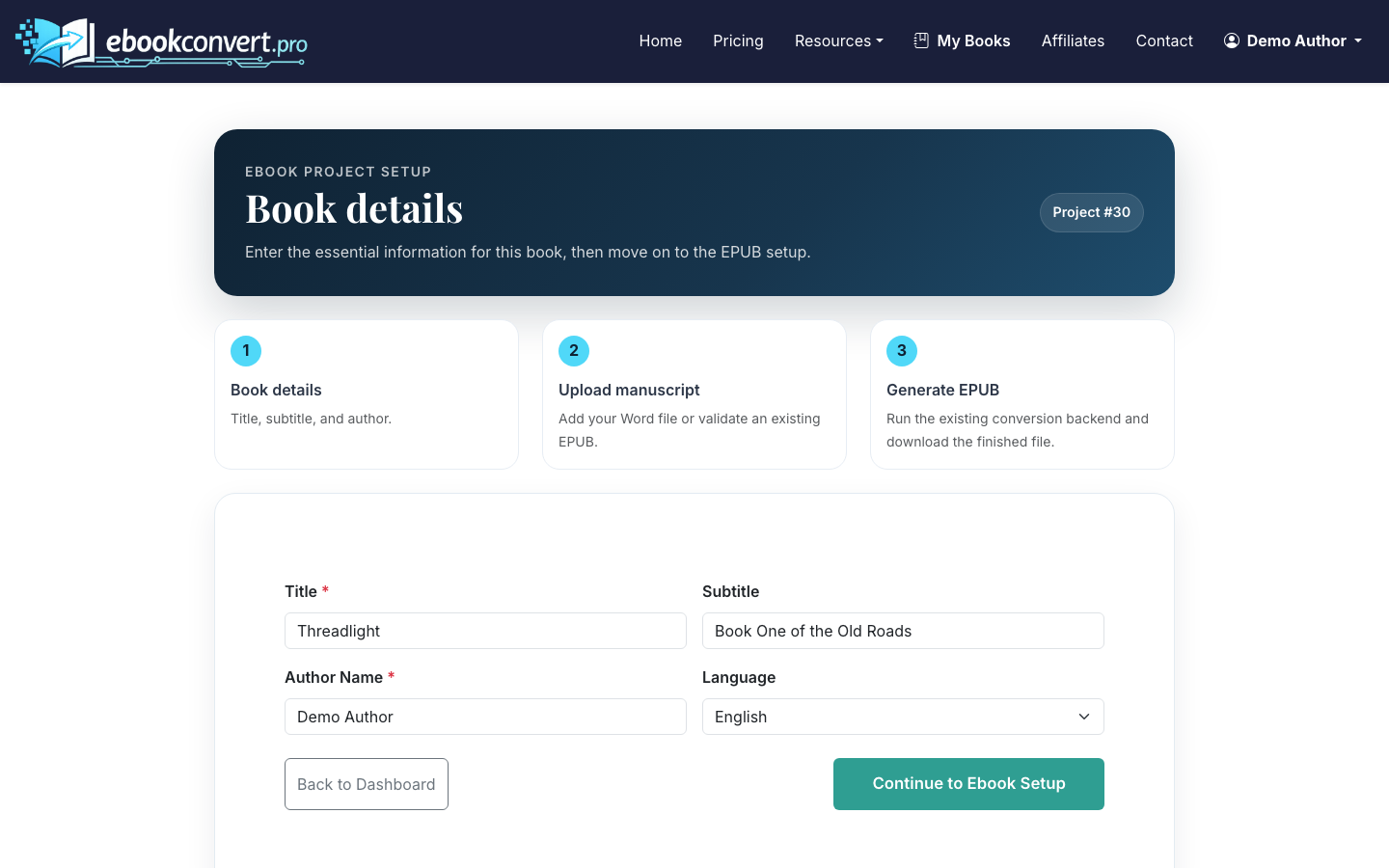
Keep this information consistent with the metadata you plan to use on Amazon KDP, IngramSpark, or other stores. Small mismatches, such as a subtitle in one place but not another, can make your files feel less professional.
2. Upload a clean DOCX manuscript
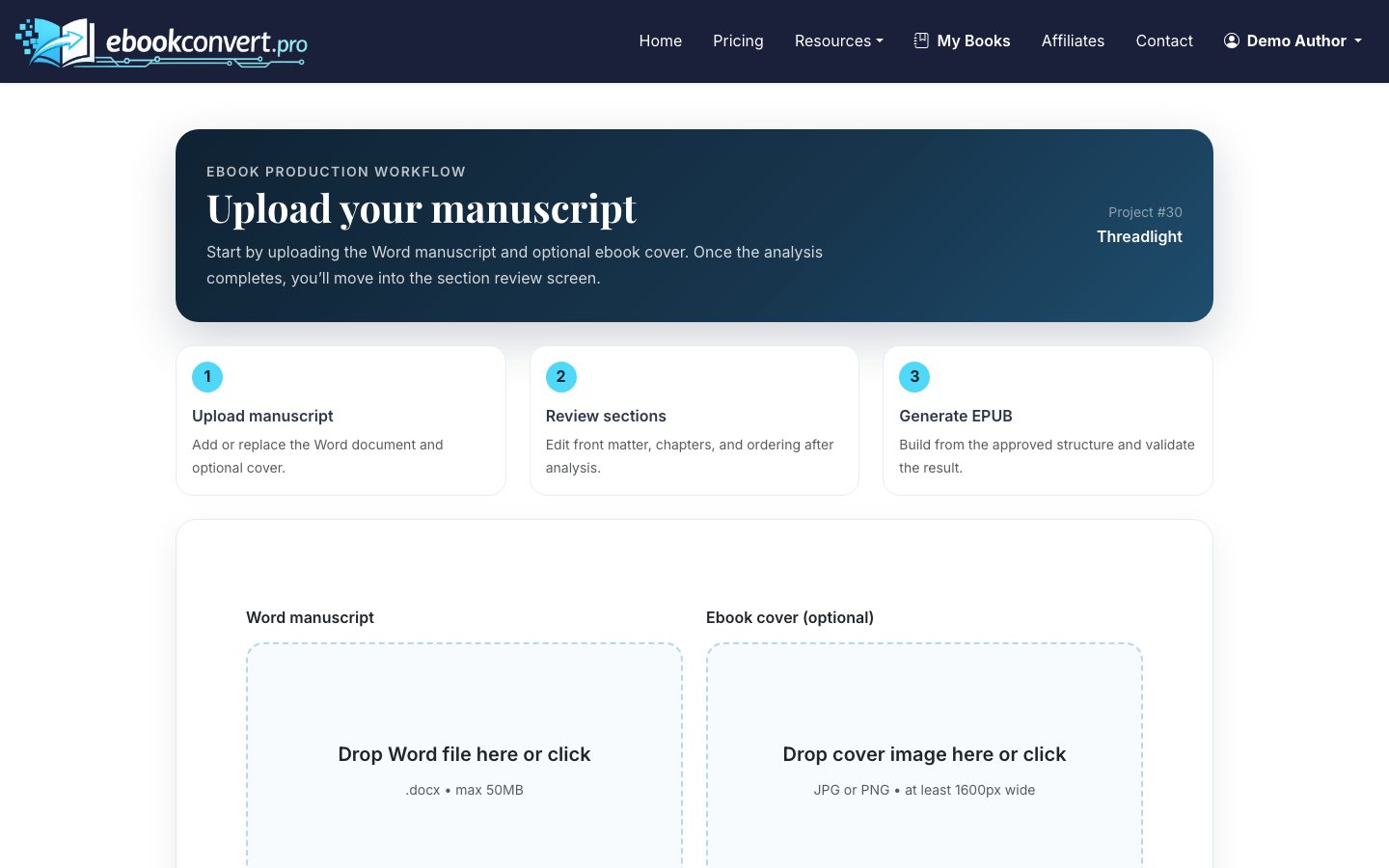
Open the ebook setup step and upload your Word DOCX manuscript. The cleaner the file, the better the results: use Word heading styles for chapter titles, avoid manual spacing with repeated blank lines, and remove comments or tracked changes before upload.
If you are still assembling the manuscript, use how to create an ebook as a broader checklist before you format.
3. Review the AI-detected sections
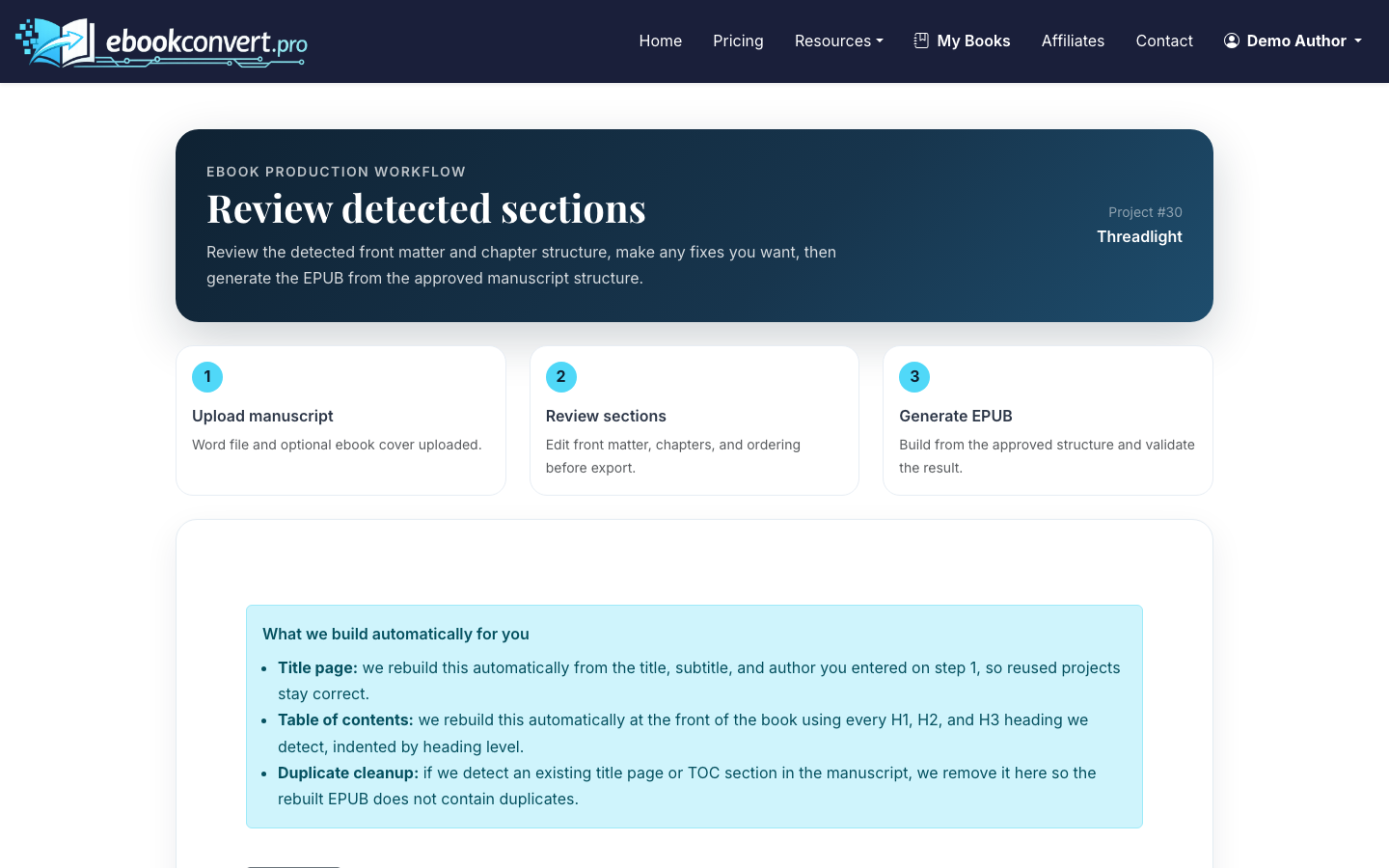
After upload, ebookconvert.pro uses AI section parsing to identify front matter, chapters, and back matter. Review the detected list before you generate final files. Rename sections where needed, reorder anything that landed in the wrong place, and check that chapter breaks match the manuscript.
This is one of the most important design steps because structure controls navigation. A beautiful chapter heading will not help if the table of contents points to the wrong section or includes pages that should not appear as chapters.
4. Choose trim size and typography
In the print formatting screen, choose the trim size, body font, heading font, paper color, drop caps, chapter heading style, and page-number position. For most nonfiction and novels, common trim sizes such as 5 x 8, 5.5 x 8.5, or 6 x 9 are practical choices.
For fonts, prioritize readability over novelty. A restrained body font with a slightly more distinctive heading font usually works better than two highly decorative typefaces. Drop caps can add polish to fiction, memoir, and narrative nonfiction, but they may feel unnecessary in technical or reference-heavy books.
5. Generate and inspect the print interior PDF
Generate the print-ready PDF and review the page count, front matter, chapter starts, running layout, and page-number placement. Open the PDF and scan the first 10 to 15 pages, several chapter openings, and the final pages.
You are looking for practical issues: awkward blank pages, headings stranded at the bottom of a page, page numbers in the wrong position, or section titles that were parsed incorrectly. If the book has complex tables, poetry, footnotes, or image-heavy layouts, the Expert Human Fix queue can help resolve formatting problems that automation may not handle cleanly.
6. Upload a finished cover (optional)
Next, move to the cover step. You can generate an AI full-wrap print cover by choosing a visual style and color palette, or upload your own cover assets. For print books, the cover needs front, spine, back, bleed, and correct dimensions for the trim size and page count.
7. Generate the EPUB 3 ebook
In the ebook step, reuse the manuscript from the print workflow or upload the DOCX again. You can also upload a separate ebook cover image if needed. Generate the validated EPUB 3 file and ebook PDF output.
The goal is a file that works across major reading systems, not a layout that looks identical on every device. EPUB is reflowable, so readers can change font size, margins, and display settings. Good ebook design respects that flexibility instead of fighting it.
For a focused walkthrough of producing the EPUB file itself, see How to Create an EPUB File.
8. Download your final files
When all steps are complete, download the EPUB, print interior PDF, ebook PDF, and cover files from the final project page. Store a local copy along with the exact manuscript version used to generate them.
From here, you can upload the finished files to your chosen distributor. If Amazon is your next stop, see how to publish an ebook on Amazon for the platform-specific steps.
How to prepare an ebook before design
Before you start formatting, run through this short preparation checklist:
- Finish editing and proofreading before upload
- Remove tracked changes, comments, and placeholder notes
- Use clear chapter headings in Word
- Keep front matter simple and complete
- Decide whether you need ebook only, print only, or both
- Gather cover direction: genre, audience, comparable books, and visual tone
Vana AI can help with plain-language revisions if the manuscript needs restructuring or cleaner prose before final formatting. That is useful for chapter organization and readability, but it is not a replacement for a final author review.
Common ebook design mistakes
The most common mistake is treating the ebook like a fixed PDF. EPUB readers can resize text and reflow pages, so design choices should focus on hierarchy, navigation, and clean structure.
Another mistake is designing the cover before the print page count is known. For a full-wrap print cover, the spine width depends on the final interior page count. Generate or confirm the interior before locking the print cover.
Finally, avoid over-formatting. Too many font changes, decorative headings, and inconsistent spacing make a book harder to read. Professional ebook design usually feels quiet: the reader notices the story or ideas, not the formatting.

