Before You Start
You need a manuscript in Word format, preferably DOCX. It should have clear chapter titles, consistent heading styles, and any front matter you want included, such as a title page, copyright page, dedication, or table of contents.
If you are still drafting, start with how to write an ebook. If your manuscript is done but the visual style needs work, read how to design an ebook before formatting. If budget is the main constraint, compare the paid workflow with How to Create an Ebook for Free. If you plan to publish commercially, continue with How to Create an Ebook to Sell; if you need the file-building steps, see How to Create an EPUB File.
1. Start a New Book Project
From your dashboard, create or open a book project. The project follows a focused flow: book details, DOCX upload, structure review, generation, and final downloads.
Even if you only want an ebook, keeping the project organized helps because the same book metadata and manuscript can support EPUB, ebook PDF, print PDF, and cover files.
2. Enter Your Book Information
Add the core metadata: title, author name, subtitle if you have one, language, and genre. This information is used throughout the project and should match what you plan to enter on Amazon KDP, IngramSpark, or another publishing platform.
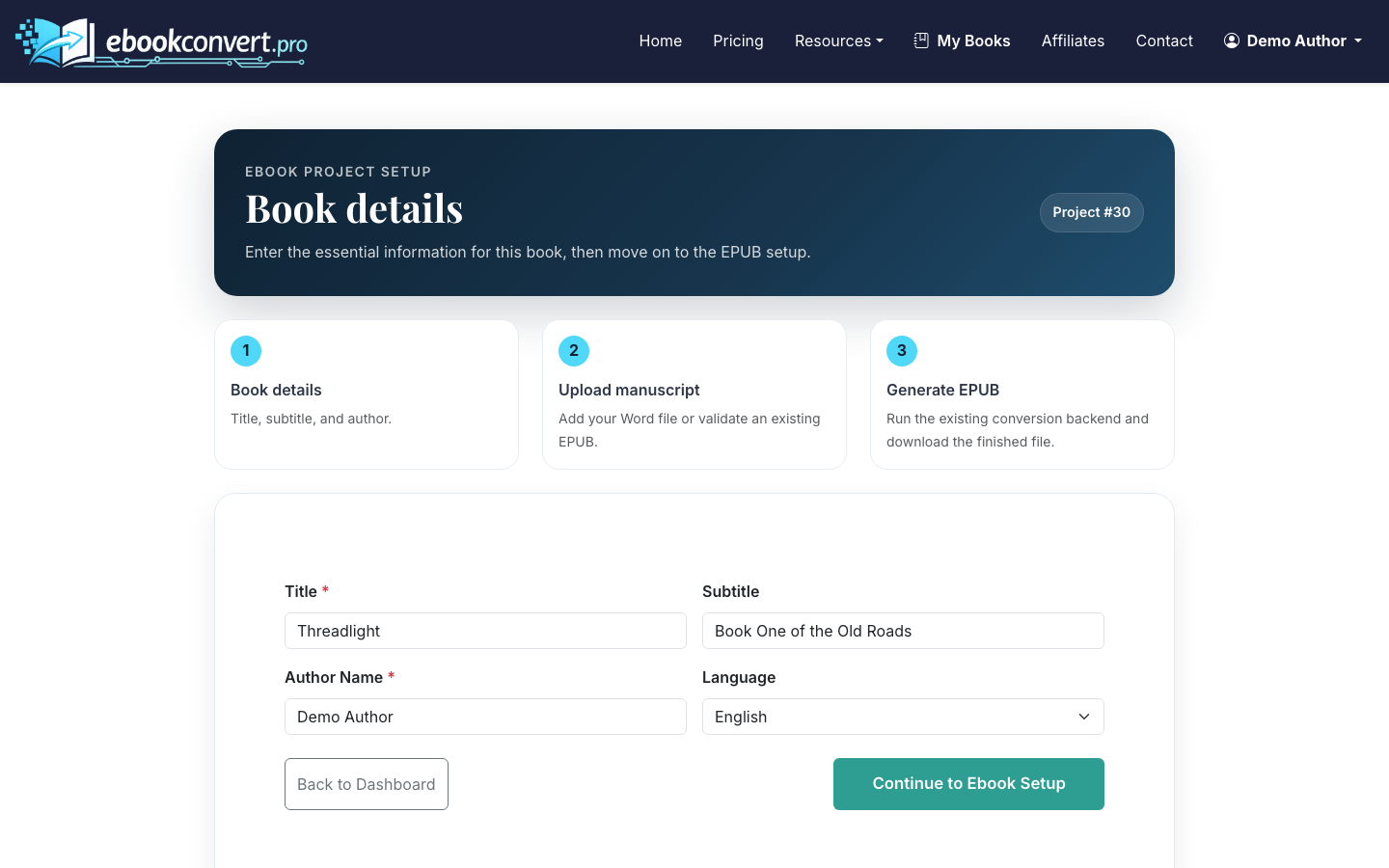
Keep the title and author spelling exactly consistent. A mismatch between your cover, EPUB metadata, and retailer listing looks sloppy and can create review delays.
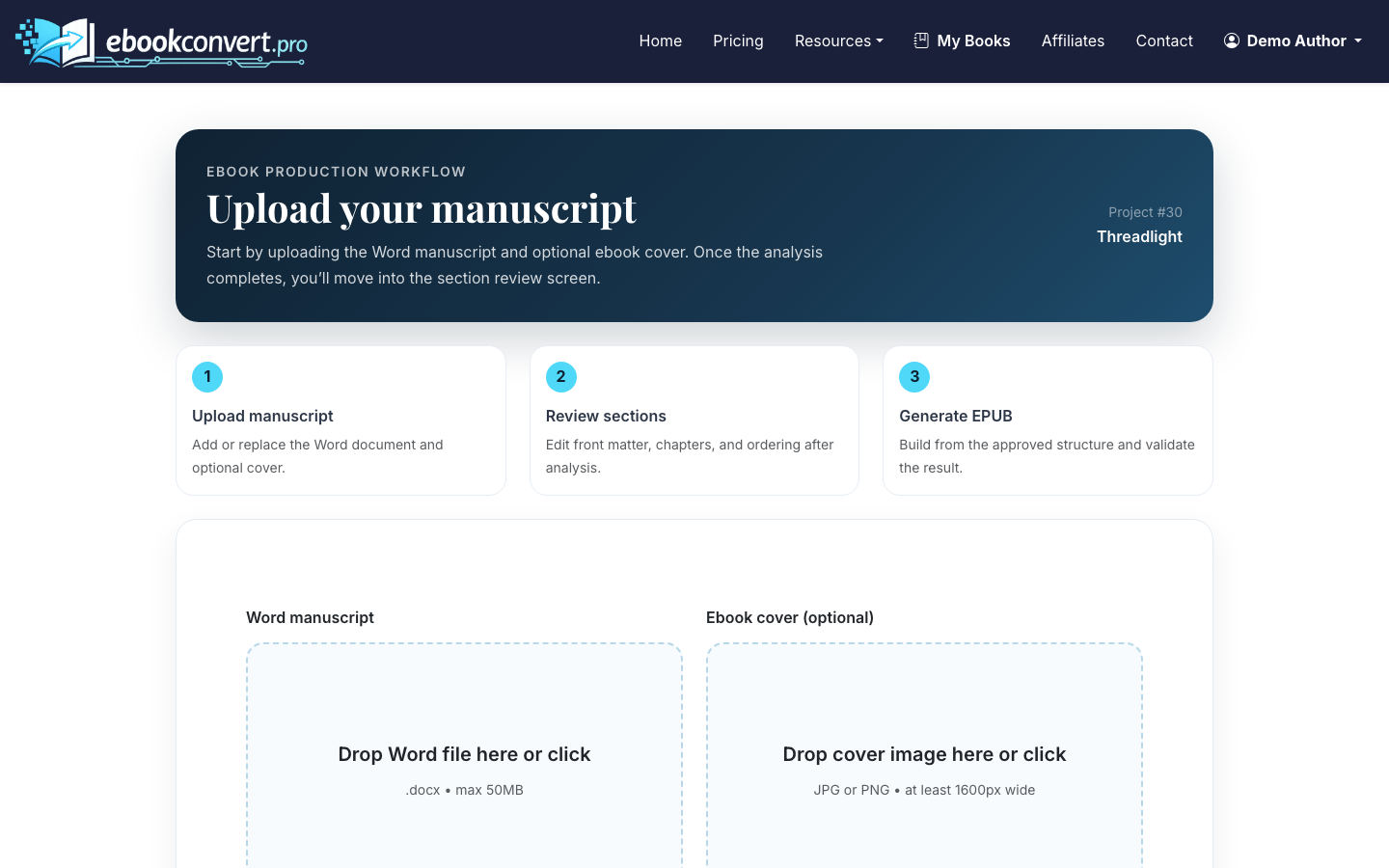
3. Upload Your Manuscript
A clean Word file produces better results. Use one chapter title per chapter, avoid manual spacing with repeated blank lines, and do not build a table of contents by hand unless you specifically need one preserved.
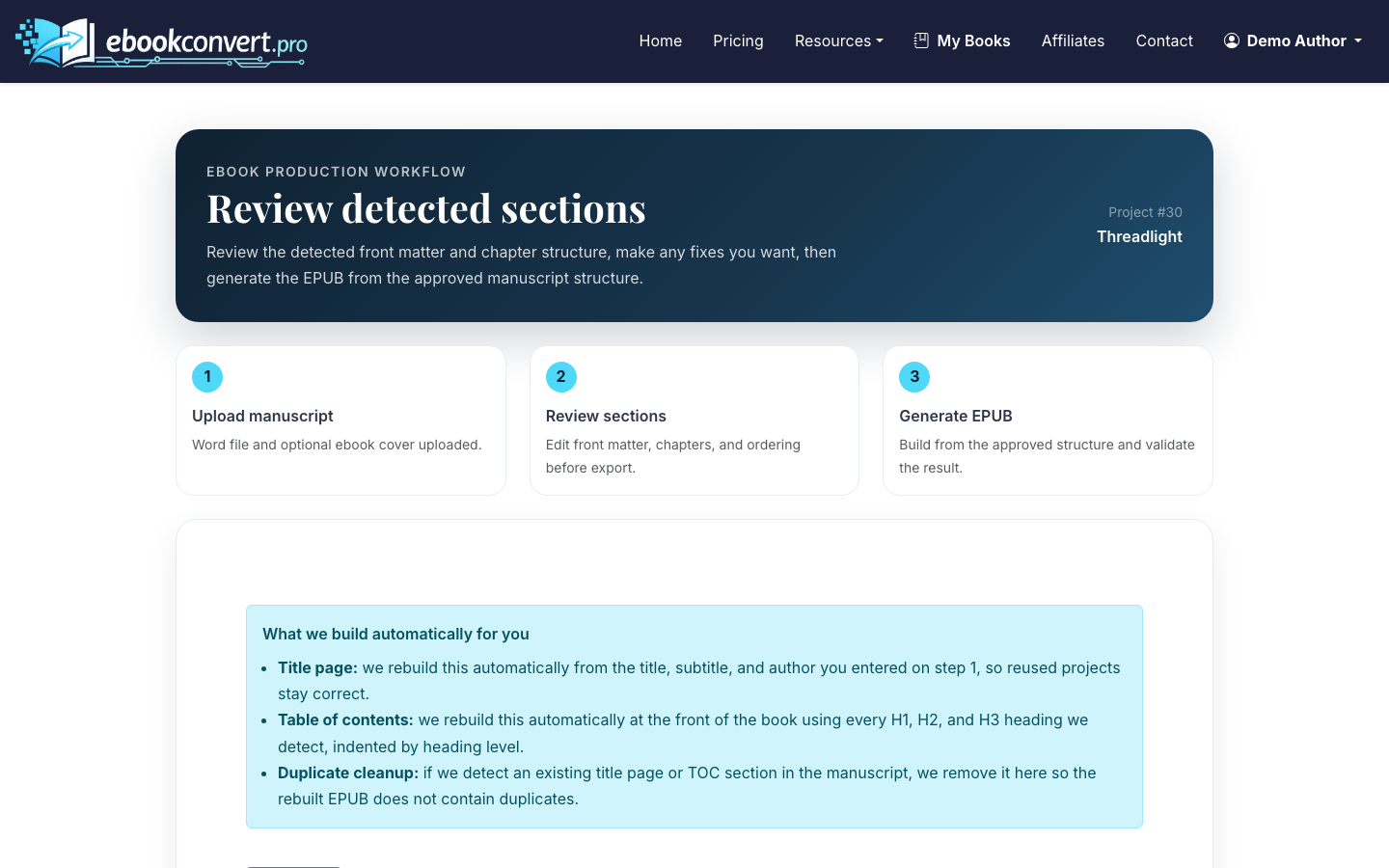
4. Review the Detected Sections
After upload, review the AI-detected section list. Check that chapters are in order, front matter is marked correctly, and any acknowledgments, author notes, or appendices are placed where you want them.
This is one of the most important steps in how to make ebooks that feel professional. EPUB files are not just long documents; they are structured packages. Correct section breaks help navigation, table of contents generation, and reading app behavior.
5. Choose Formatting Options
Set the reading style for your book. For print interiors, you can choose trim size, body font, heading font, paper color, drop caps, chapter heading style, and page-number position.
For ebook output, the goal is different from print. Ebooks are reflowable, which means readers can change font size, screen width, and reading mode. Avoid layout choices that depend on a fixed page. Use formatting to create hierarchy, not to force exact placement.
Good ebook formatting usually means:
- Clear chapter starts
- Consistent heading levels
- Simple paragraph spacing
- No fake indentation made with spaces or tabs
- Images compressed enough for distribution but still sharp
- A linked table of contents
6. Upload a Finished Cover (Optional)
You can generate an AI cover by choosing a visual style and color palette, or upload your own cover if you already have one. For marketplaces, your cover should be readable at thumbnail size because many readers first see it in search results.
7. Generate the EPUB 3 Ebook
Open the ebook step, reuse your uploaded manuscript or upload a DOCX specifically for ebook generation, add the cover image if needed, and generate the validated EPUB 3 file.
EPUB 3 is the standard format accepted by major ebook platforms. Validation matters because an ebook can look fine on your computer but still fail retailer checks if the internal package has broken navigation, missing metadata, unsupported markup, or image problems.
If Vana AI suggests plain-language revisions, use them for structural cleanup or awkward prose, not for changing your voice blindly. The best results come from reviewing each revision like an editor.
8. Download and Check Your Files
When the project is complete, download the EPUB, ebook PDF, print PDF if generated, and cover files from the final step.
Open the EPUB in at least two readers before publishing. Apple Books, Kindle Previewer, Thorium Reader, or another EPUB reader can reveal different issues. Check the first chapter, table of contents, images, italics, scene breaks, and end matter.
9. Prepare to Publish
Once the ebook is ready, you can upload it to your chosen retailer or distributor. Amazon KDP is the most common starting point for independent authors, but you may also use Apple Books, Kobo, Google Play Books, Draft2Digital, or another distributor.
For the Amazon workflow, follow how to publish an ebook on Amazon.
Before uploading, gather:
- Final EPUB file
- Ebook cover image
- Book title and subtitle
- Author name
- Description
- Categories and keywords
- Pricing plan
- ISBN decision, if relevant
Common Mistakes to Avoid
Do not upload a rough draft just to see what happens and then forget to recheck the output. Ebook creation is fast, but quality control still matters.
Avoid these problems:
- Inconsistent chapter headings
- Missing copyright page
- Oversized images that bloat the EPUB
- Manual page numbers inside the manuscript
- Hard-coded headers and footers meant for print
- Cover text that is unreadable as a thumbnail
- Publishing without opening the final EPUB
How Long Does It Take?
If your manuscript is clean, you can create an ebook in under an hour. A more realistic schedule is 1-2 hours for upload, formatting, cover selection, generation, and review. Add more time if your manuscript has complex images, footnotes, tables, poetry, recipes, or unusual spacing.
The tradeoff is control versus speed. Manual formatting gives you more control if you know EPUB production well. A guided tool like ebookconvert.pro is faster for authors who want a validated EPUB 3 without learning HTML, CSS, and packaging rules.

