Before you build the ebook
Start with the business side, not the export button. A sellable ebook needs a clear reader, a specific promise, and enough polish to justify the price.
Before formatting, decide:
- The main reader problem your ebook solves
- The category or genre it belongs in
- Whether it will be text-only, image-heavy, workbook-style, or narrative
- Your target price, usually $2.99-$9.99 for many consumer ebooks and $19-$99 for specialized business or educational PDFs
- Where you will sell it: Amazon KDP, your own checkout, marketplaces, or all of the above
If you are still drafting, start with How to Write an Ebook. If you already have a manuscript and want a broader overview, see How to Create an Ebook.
Step-by-step: how to create an ebook to sell
1. Prepare your Word manuscript
Use DOCX as your working file. Keep formatting clean: one title page, consistent chapter headings, normal paragraph spacing, and no manual tabs for indents. If your book has images, use high-resolution versions and place them close to the relevant text.
Avoid building your layout with text boxes, columns, floating objects, or copied web formatting. Those can break when converted into EPUB, because EPUB reflows text across phones, tablets, and ereaders.
2. Start a new book project
In ebookconvert.pro, create or open your dashboard, then start a new project for the book you want to sell. The dashboard shows your existing book projects, their status, and your remaining credits.
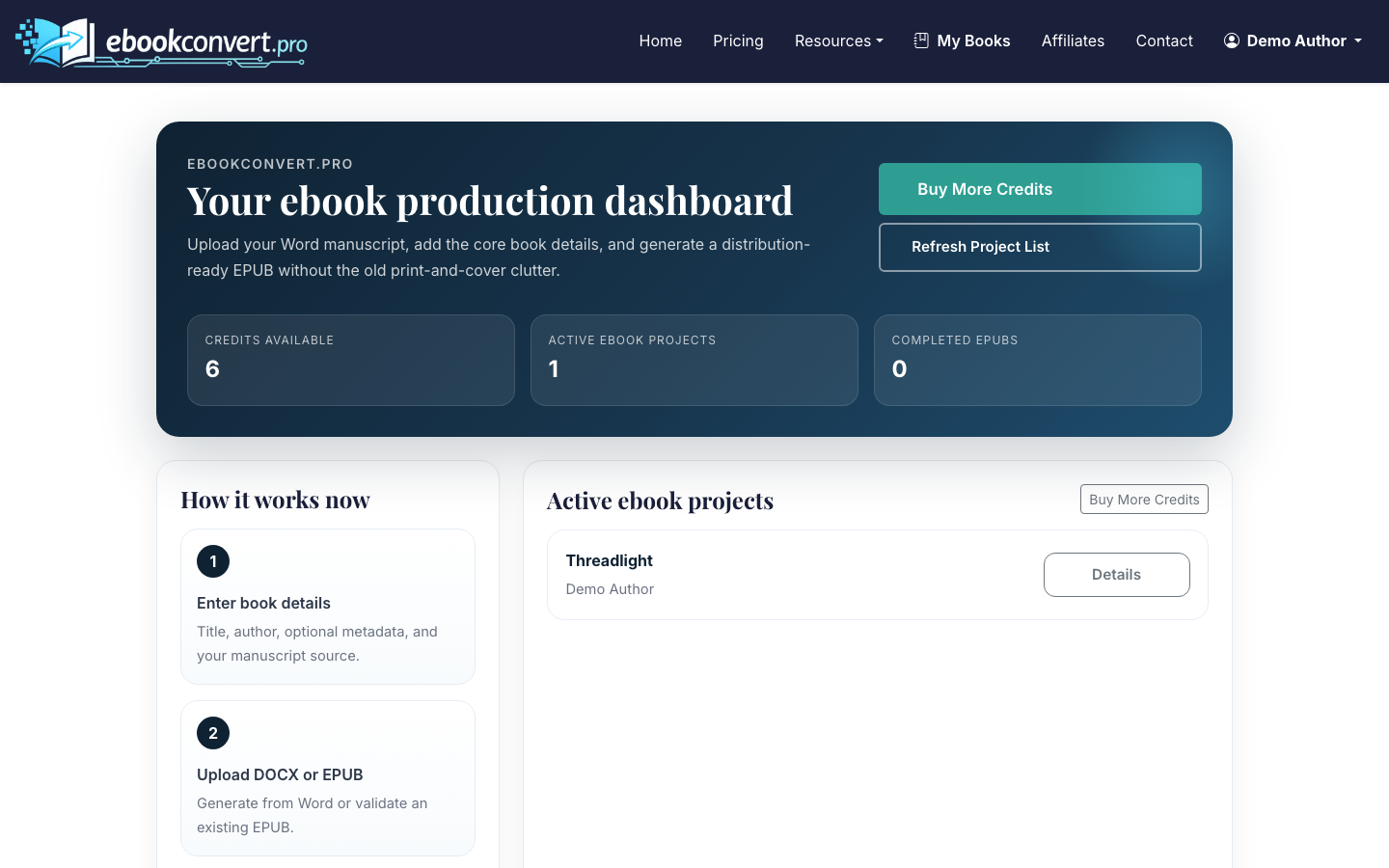
Open the project to see the focused flow: book details, DOCX upload, structure review, generation, and downloads. Even if you only plan to sell an ebook first, setting up the full project keeps your files organized for later print editions.
3. Enter the book details
Add your title, author name, subtitle if you have one, language, and genre. These details matter because they appear in your project files and help keep the ebook metadata consistent with your sales page.
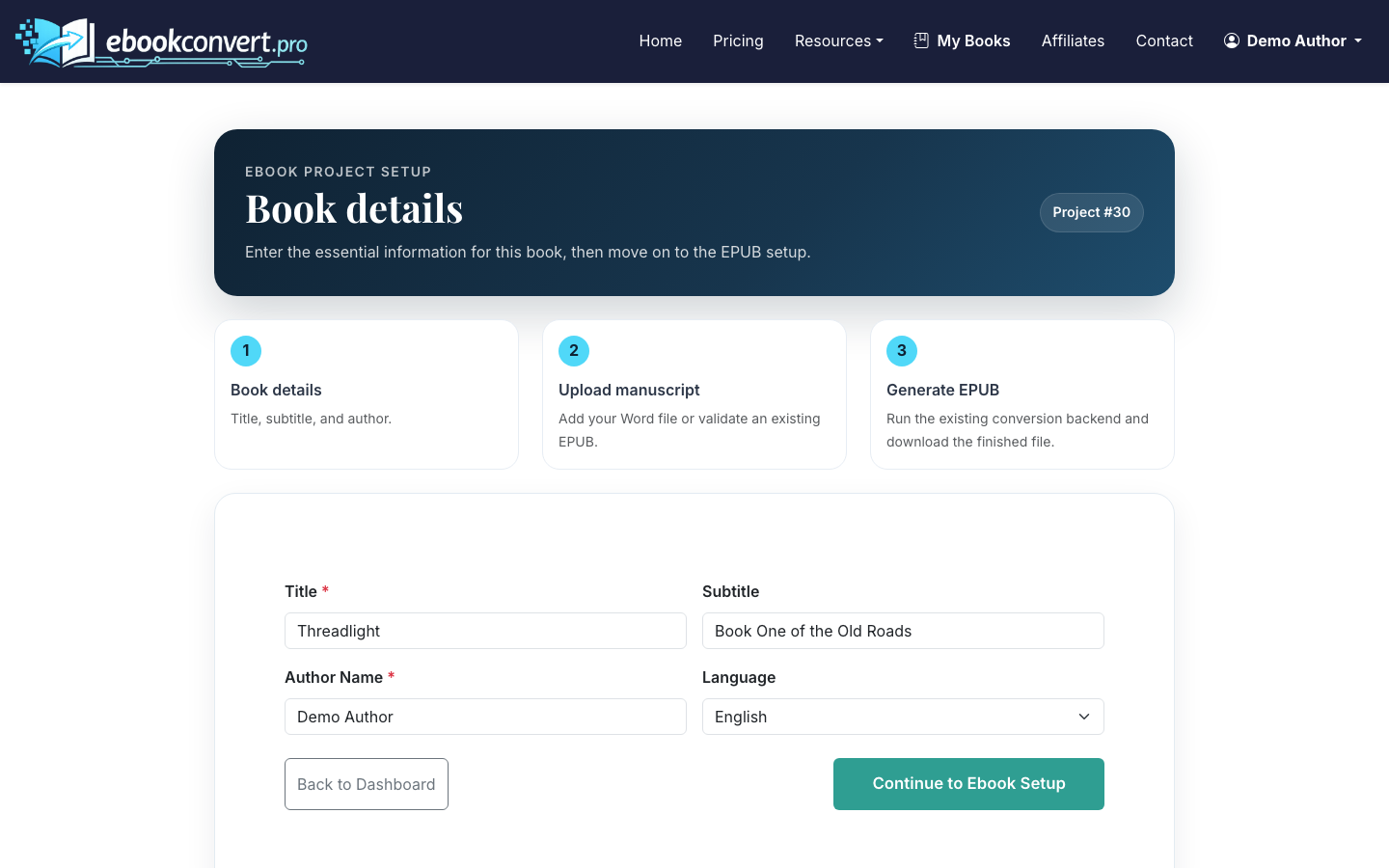
Use the same author name and title you plan to use on your selling platform. Small mismatches between your cover, metadata, and sales listing can make the product look unfinished.
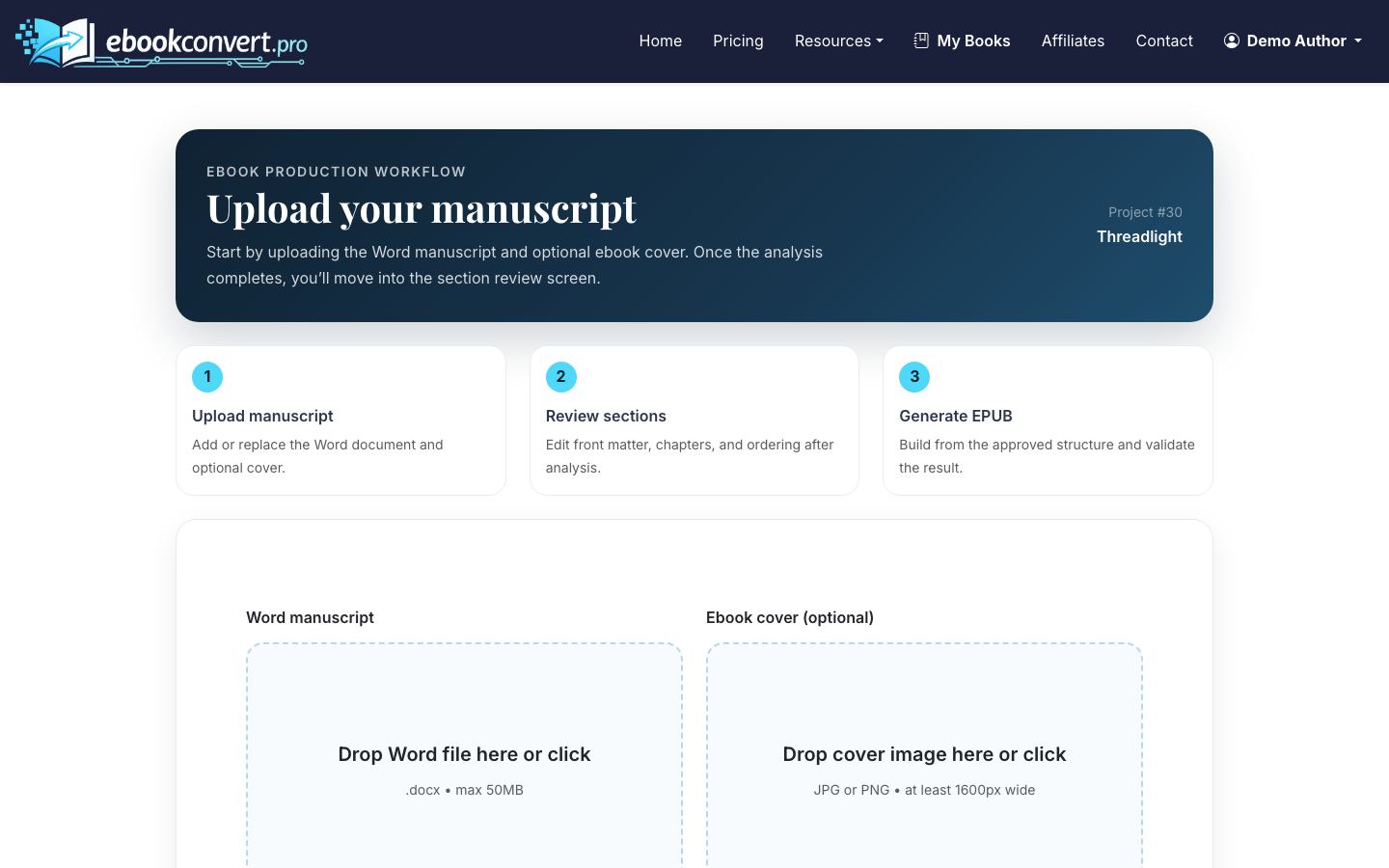
4. Upload and parse your DOCX manuscript
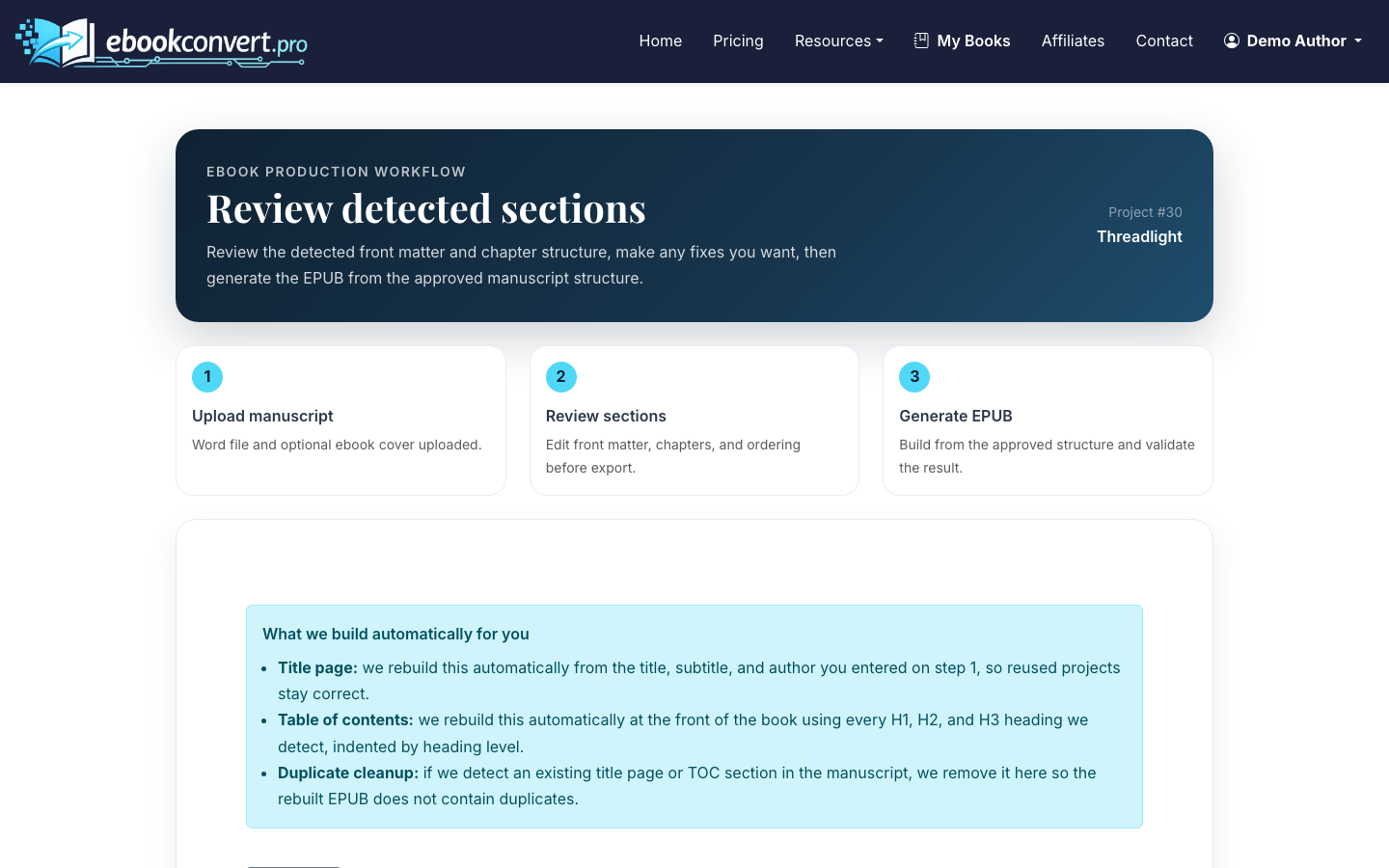
After parsing, review the detected sections. Rename chapters if needed, reorder misplaced sections, and make sure front matter such as copyright, dedication, and table of contents is in the right place.
This is where many ebook problems are caught early. If Chapter 7 was detected as body text, or your acknowledgments landed in the wrong place, fix it before generating files.
5. Choose formatting that fits the product
For authors who also want a print edition, choose trim size, fonts, drop caps, chapter heading style, paper color, and page-number position in the print formatting step.
For a sellable ebook, the main priority is readability. Decorative fonts, oversized chapter headings, and complex spacing may look good in Word but feel clumsy on a phone. Keep body text simple and make chapter breaks obvious.
If your ebook is part of a broader launch, your print PDF can support paperback sales on KDP or IngramSpark while the EPUB handles Kindle and other ebook stores.
6. Upload a finished cover (optional)
Your cover is part of the sales system, not just packaging. It has to work as a thumbnail, match the genre, and make the topic clear within a few seconds.
In the cover step, you can generate an AI full-wrap print cover by selecting a visual style and color palette, or upload your own cover artwork if you already have one.
For more design guidance, read How to Design an Ebook.
7. Generate the EPUB and ebook PDF
Move to the ebook step. You can reuse the DOCX already uploaded for print or upload the manuscript again, then generate a validated EPUB 3 file and an ebook PDF.
EPUB is the standard format for most ebook distribution because it reflows across screen sizes. PDF is useful when your ebook has a fixed layout, worksheets, slides, or when you sell directly and want buyers to receive a file that preserves the page design.
If you plan to sell on Amazon KDP, EPUB is usually the file you want for the Kindle ebook. If you sell through your own checkout, offering both EPUB and PDF can reduce support requests from readers who prefer different devices.
8. Download your selling files
When the project is complete, download the files you need: EPUB, print PDF, ebook PDF, and cover assets. Keep a copy of each final file with a clear version name, such as book-title-v1.epub.
Before uploading anywhere, open the EPUB in at least two readers if possible. Check the cover, table of contents, chapter starts, image placement, links, and any back-matter calls to action.
9. Sell it online
Once the files are ready, choose your selling path:
- Amazon KDP for Kindle visibility and marketplace discovery
- IngramSpark if you also want broad print distribution
- Gumroad, Payhip, Shopify, Lemon Squeezy, or WooCommerce for direct sales
- Draft2Digital or similar aggregators for multiple ebook retailers
Direct sales give you more control and higher margins, but you handle traffic, taxes, file delivery, and customer support. Marketplaces reduce operational work but take a larger share and limit how you present the product.
10. Improve the ebook after launch
After the first sales, watch for reader questions and refund reasons. If people ask the same question repeatedly, revise the ebook or add a bonus page. ebookconvert.pro includes Vana AI for plain-language revisions, so you can restructure chapters or tighten prose without paying extra for each edit.
For complex formatting issues, the Expert Human Fix queue can help when the manuscript needs hands-on cleanup beyond automated conversion.
If you are comparing tools for the production side of selling an ebook, our self-publishing tools comparison for EPUB conversion and print formatting breaks down where a conversion service fits alongside print-layout tools.

