Before You Start
You need three things before you make an EPUB file:
- A finished Word DOCX manuscript
- A book title, author name, language, and genre
- A front cover image, or enough direction to generate one
Your manuscript does not need to be perfectly typeset. In fact, heavy manual formatting can make EPUB conversion harder. Use Word styles for chapter headings when possible, keep body text simple, and avoid using spaces or tabs to force alignment.
How to Create an EPUB File in ebookconvert.pro
1. Start a Book Project
Open your dashboard and create or select the book project you want to convert. The project follows a focused flow: book details, DOCX upload, structure review, generation, and final downloads.
The project keeps your manuscript, detected structure, validation result, EPUB, and readable companion PDF together.
2. Enter Your Book Information
Add the title, author name, subtitle if you have one, language, and genre. This information helps keep your project organized and can also inform how the platform interprets the manuscript.
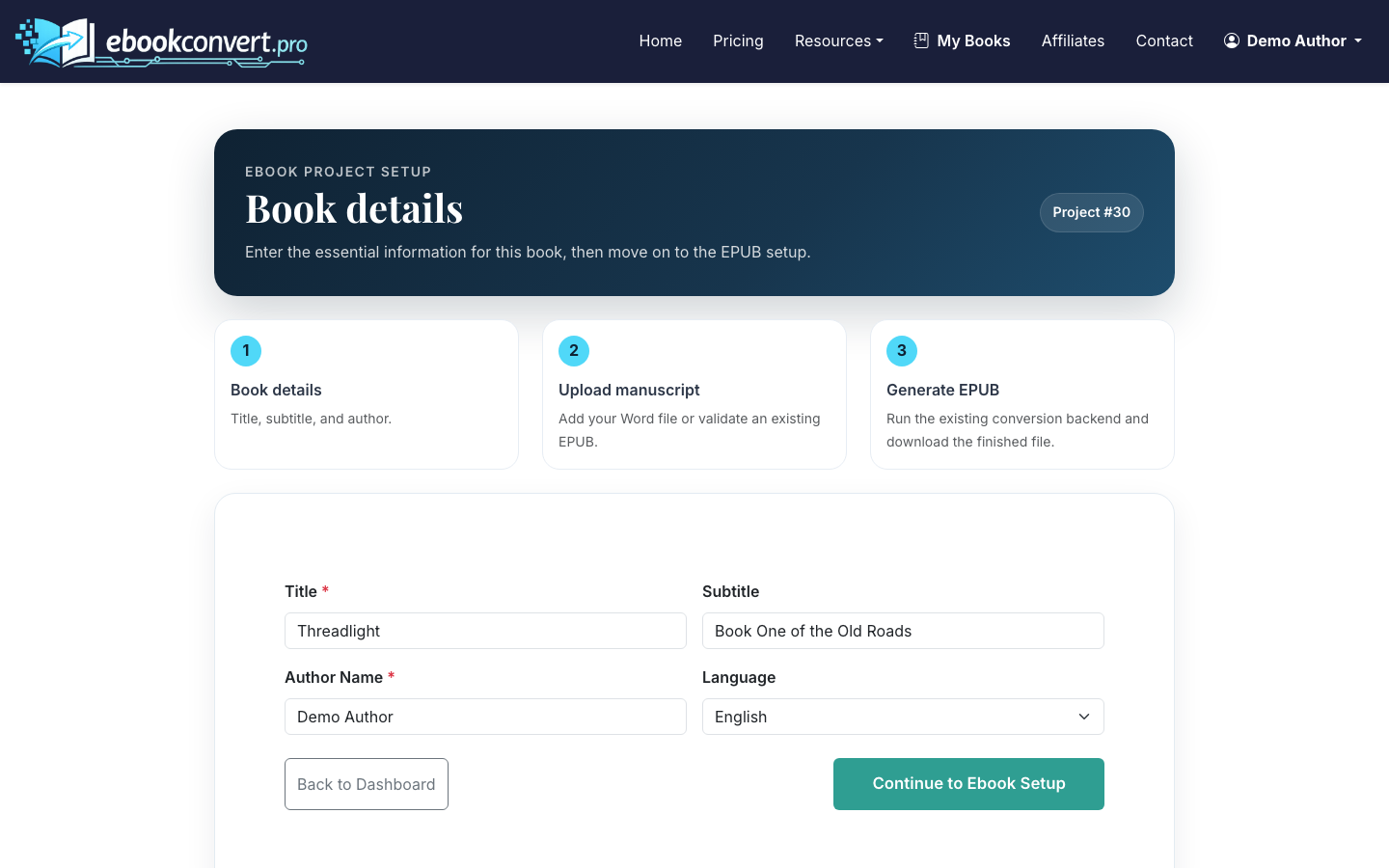
Use the same title and author spelling you plan to use on retailer pages. Small inconsistencies are easy to miss, but they can create messy metadata across ebook stores.
3. Upload Your DOCX Manuscript
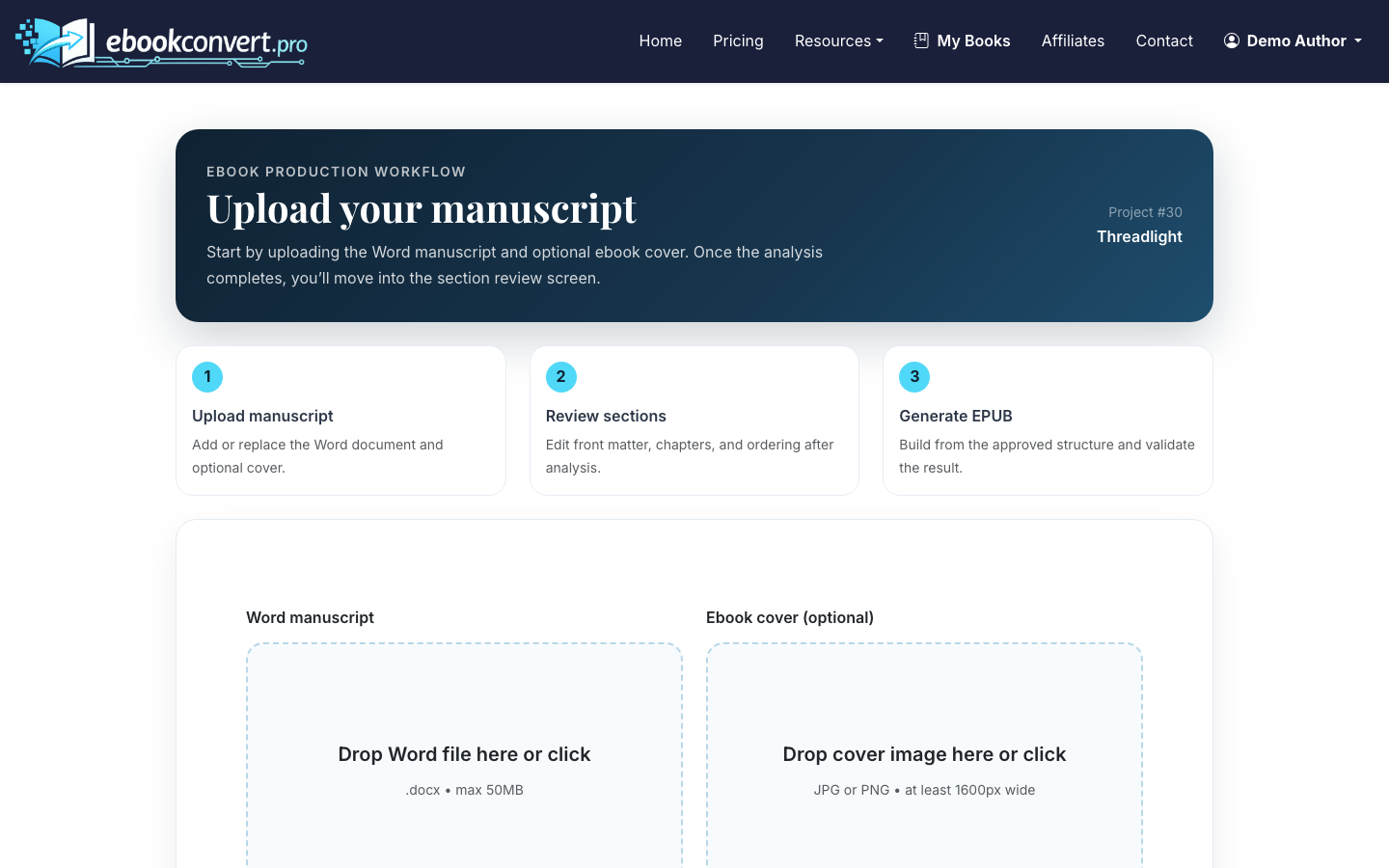
Go to the manuscript upload area and drag in your Word file. ebookconvert.pro uses AI section parsing to identify front matter, chapters, and back matter, which helps create a cleaner EPUB table of contents.
The upload runs the free structure preflight so you can review chapters and front matter before using a conversion credit.
4. Review the Detected Sections
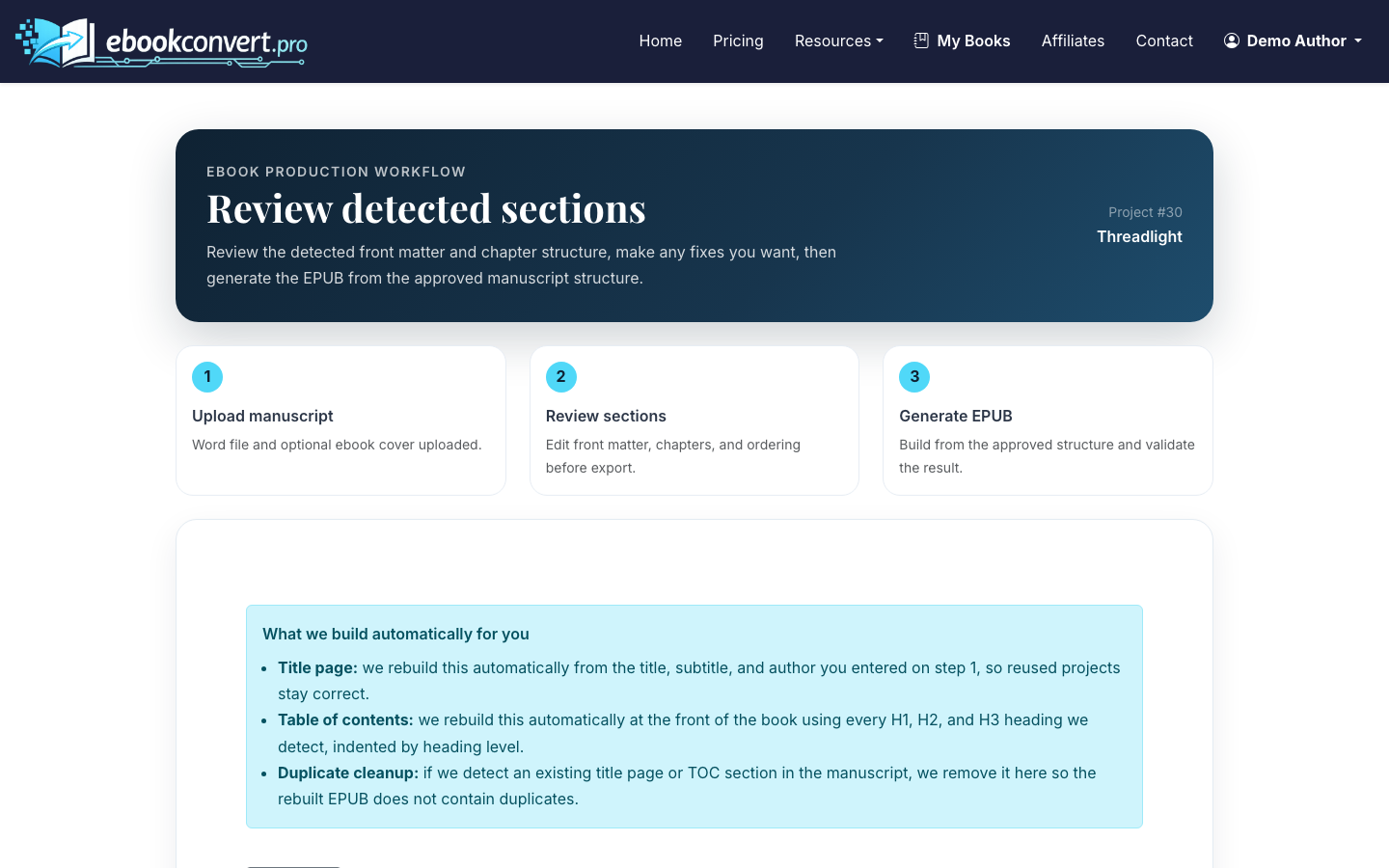
After upload, review the AI-detected section list. Confirm that copyright pages, dedications, chapters, acknowledgments, author bios, and other sections are labeled correctly.
Reorder sections if needed, rename chapter titles, and fix anything that should or should not appear in the EPUB navigation. This is one of the most important steps if you want a professional reading experience.
Common fixes include:
- Changing “Chapter 1” to “Chapter One” if that matches your book style
- Moving an author note from front matter to back matter
- Removing blank sections created by accidental page breaks
- Correcting headings that were detected as body text
5. Upload a Finished Cover (Optional)
For ebook stores, the front cover is what matters. Print-specific wrap details such as spine width and back cover are useful for paperback publishing, but the EPUB itself will use the front-facing cover file.
6. Generate the EPUB 3 File
Go to the ebook step, reuse the uploaded DOCX if prompted, attach or confirm the cover image, and generate the EPUB. ebookconvert.pro creates a validated EPUB 3 file plus an ebook PDF output.
This step is where your manuscript becomes an actual EPUB file. EPUB 3 is the modern standard and is widely accepted by major ebook platforms.
After generation, check for the basics:
- The cover appears first and displays correctly
- The table of contents includes the right sections
- Chapter starts are consistent
- Italics, bold text, lists, and scene breaks look correct
- Front matter and back matter appear in the intended order
7. Download Your Finished EPUB
When the project is complete, download the EPUB file from the final project page. You can also download related outputs such as the print PDF, ebook PDF, and cover files if you created them.
Keep a copy of the final EPUB you upload to retailers. If you make later revisions, store the revised EPUB with a clear version name so you do not accidentally upload an older file.
What Makes a Good EPUB File?
A good EPUB is not just a Word file wrapped in a new extension. It should be readable across screen sizes, support navigation, and pass validation.
The most important quality checks are:
- Valid EPUB 3 structure
- Proper cover image embedded in the file
- Clickable table of contents
- Clean chapter breaks
- Reflowable text that adapts to phones, tablets, and e-readers
- No hard-coded page numbers inside the body text
- No broken images or missing fonts
For a broader publishing workflow, read How to Create an Ebook. If you are still shaping the manuscript itself, start with How to Write an Ebook. For visual layout and reader experience, see How to Design an Ebook.
DOCX to EPUB vs. Building EPUB by Hand
You can create EPUB format manually using HTML, CSS, metadata files, and packaging tools. That gives you very fine control, but it also requires technical knowledge and more testing.
For most authors, converting from a structured DOCX is faster and less error-prone. The tradeoff is that you should keep the source manuscript clean. If the Word file is full of manual spacing, pasted formatting, or inconsistent headings, those problems can carry into the EPUB.
ebookconvert.pro is designed for authors who want the practical route: upload DOCX, review structure, generate a validated EPUB 3 file, and still have access to Vana AI revisions or an Expert Human Fix queue when formatting issues are too complex to handle automatically.
Final Checks Before Uploading
Before sending your EPUB to KDP, Apple Books, Kobo, or another distributor, open it in at least one reader app. Apple Books, Thorium Reader, and Kindle Previewer are common options.
Look at the first chapter, a middle chapter, and the back matter. Do not only check the first page. Formatting problems often hide around scene breaks, lists, images, or chapter transitions.

